John Herrman over at Gizmodo has written a nice guide that explains how to install and run a virtual operating system for free (as long as you own the operating system, of course).
A virtual operating system is one that is running within another operating system. Imagine running Windows 7 on your Mac, or Linux inside Windows (or vice-versa).
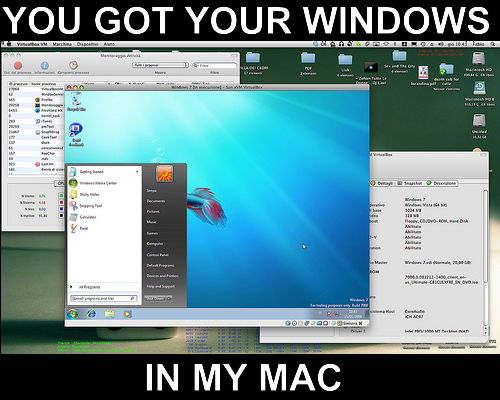 Maybe you are interested in this whole Linux†thing, or wanted to give Windows a try without installing a completely new operating system on your computer. Or perhaps you rely on Windows only software, but want to buy a Mac. Running an operating system with VirtualBox makes this simple and free. Check out the guide and go experiment!
Related Posts
-
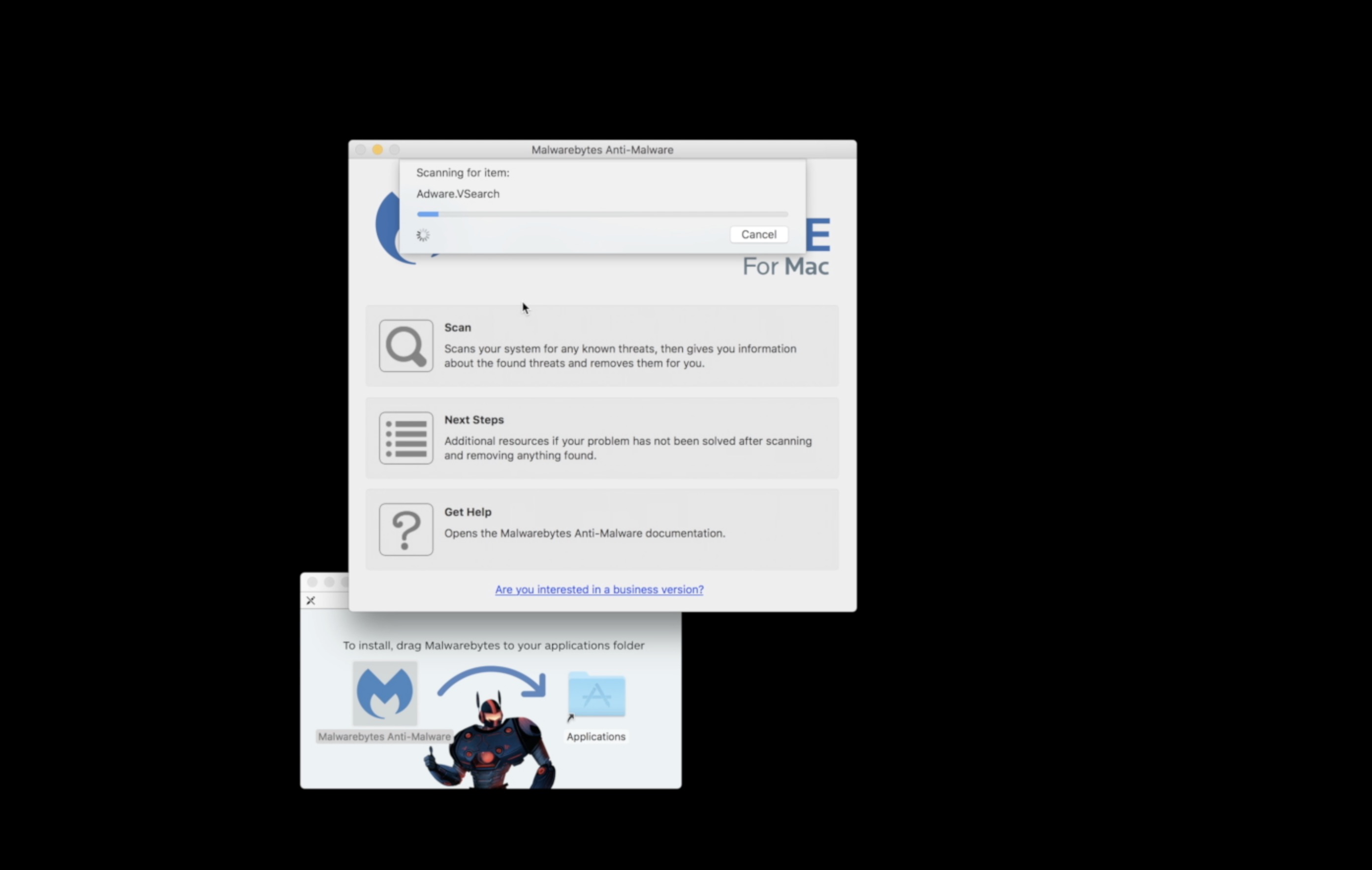
Here is a guide on how to detect Mac malware and safely remove it from…
-
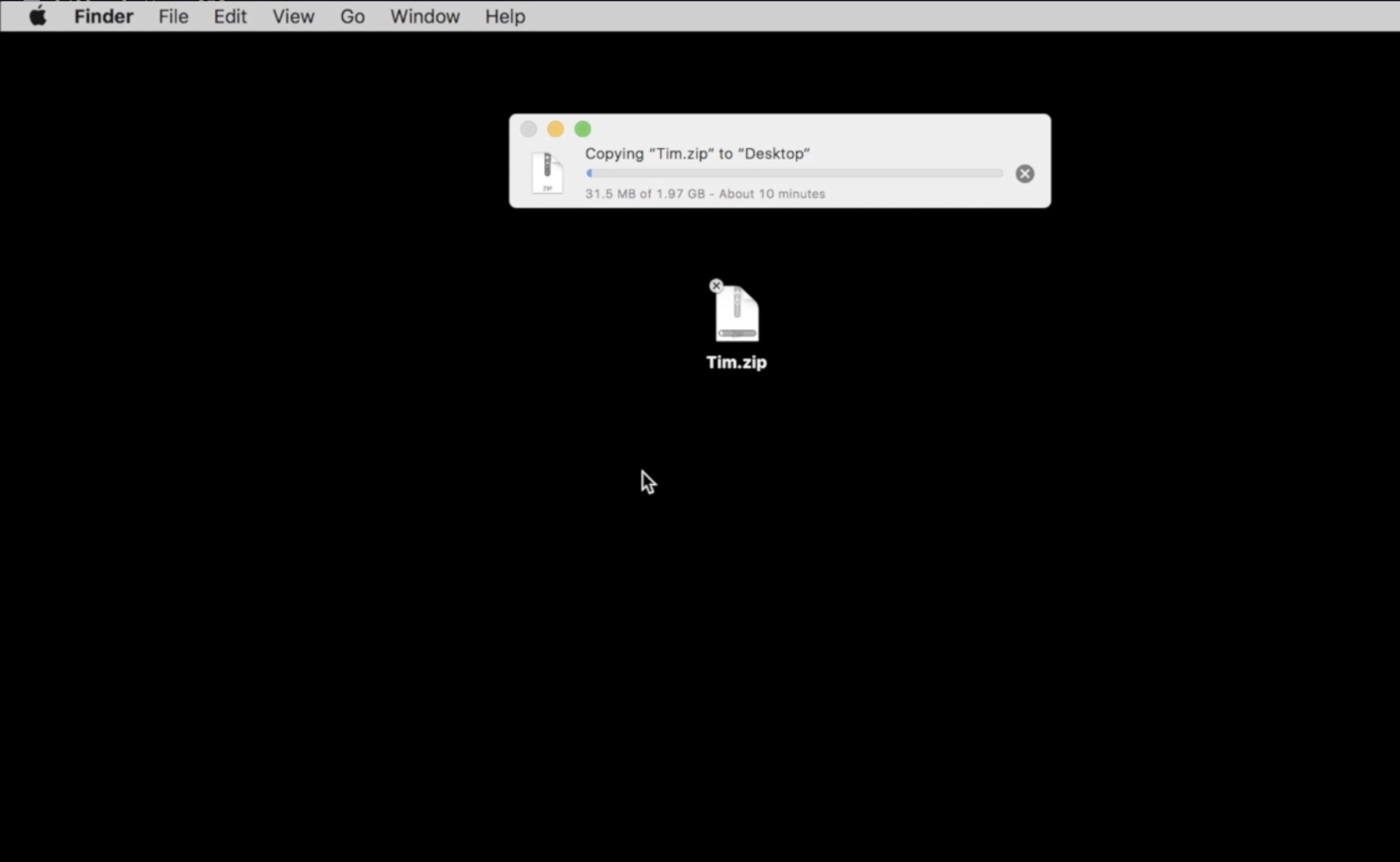
Here is a guide on how to remote access a Mac from another computer to get…
-
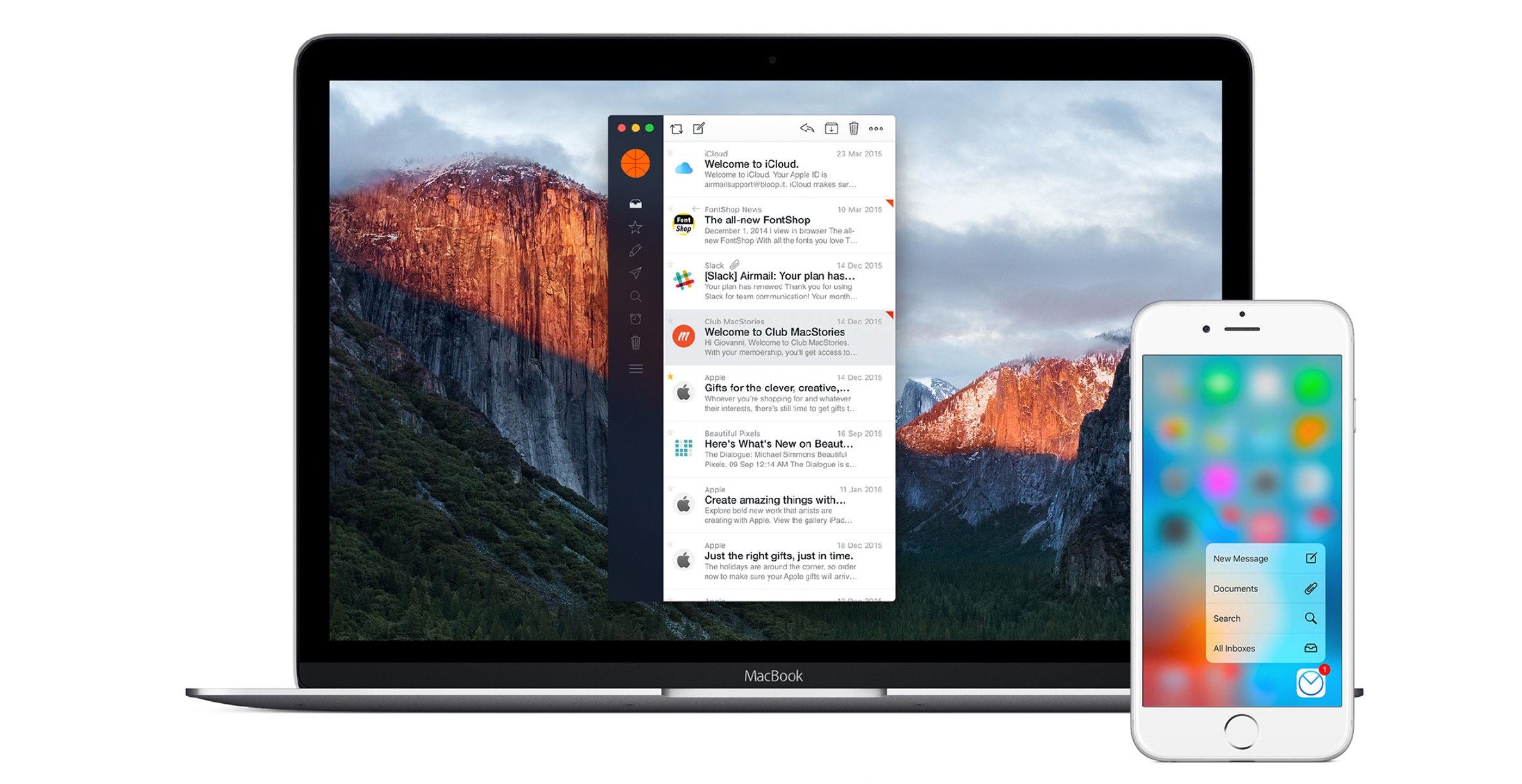
While most people can access their email via the web these days, having a dedicated…